Setting Up Claude for Google Sheets

Build with Claude \ Anthropic

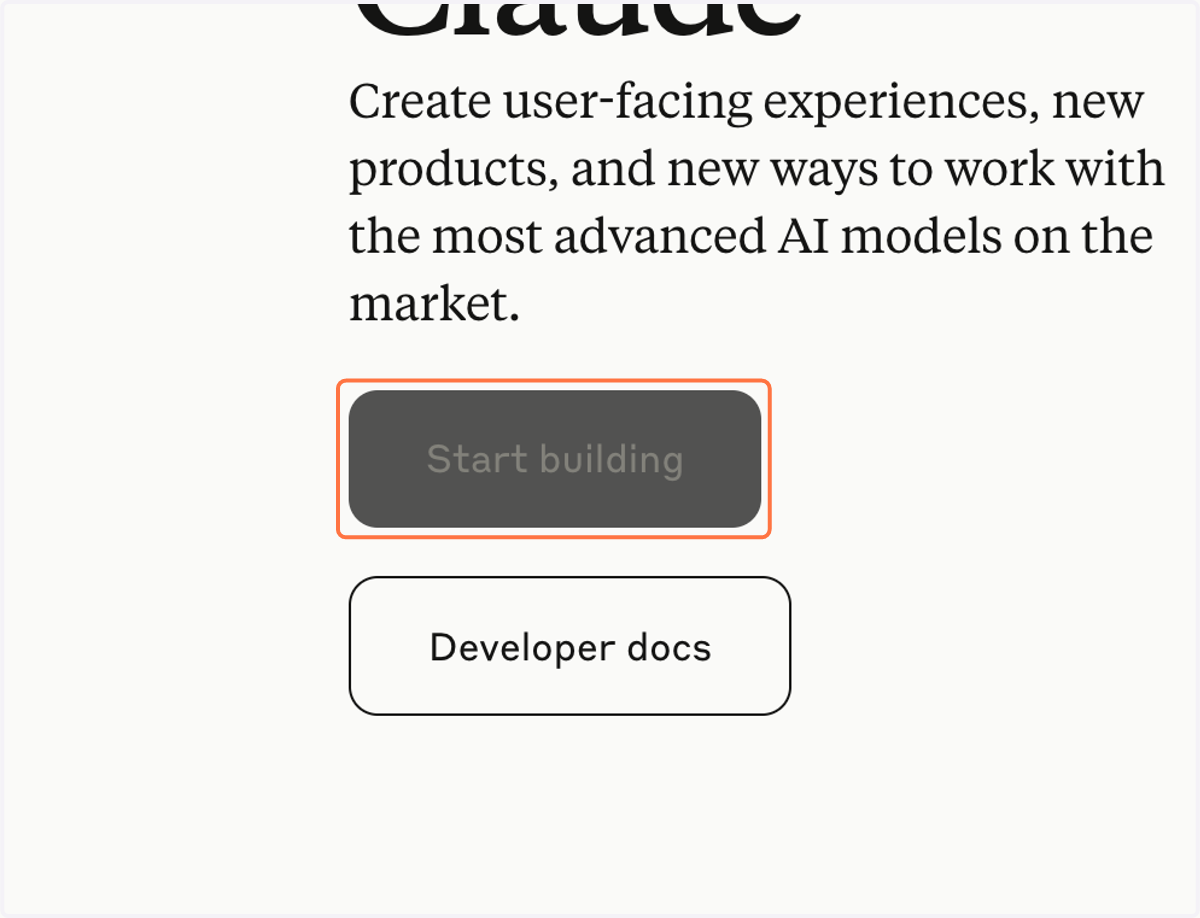
  1. 1. Click on Start building

    Click on Start building
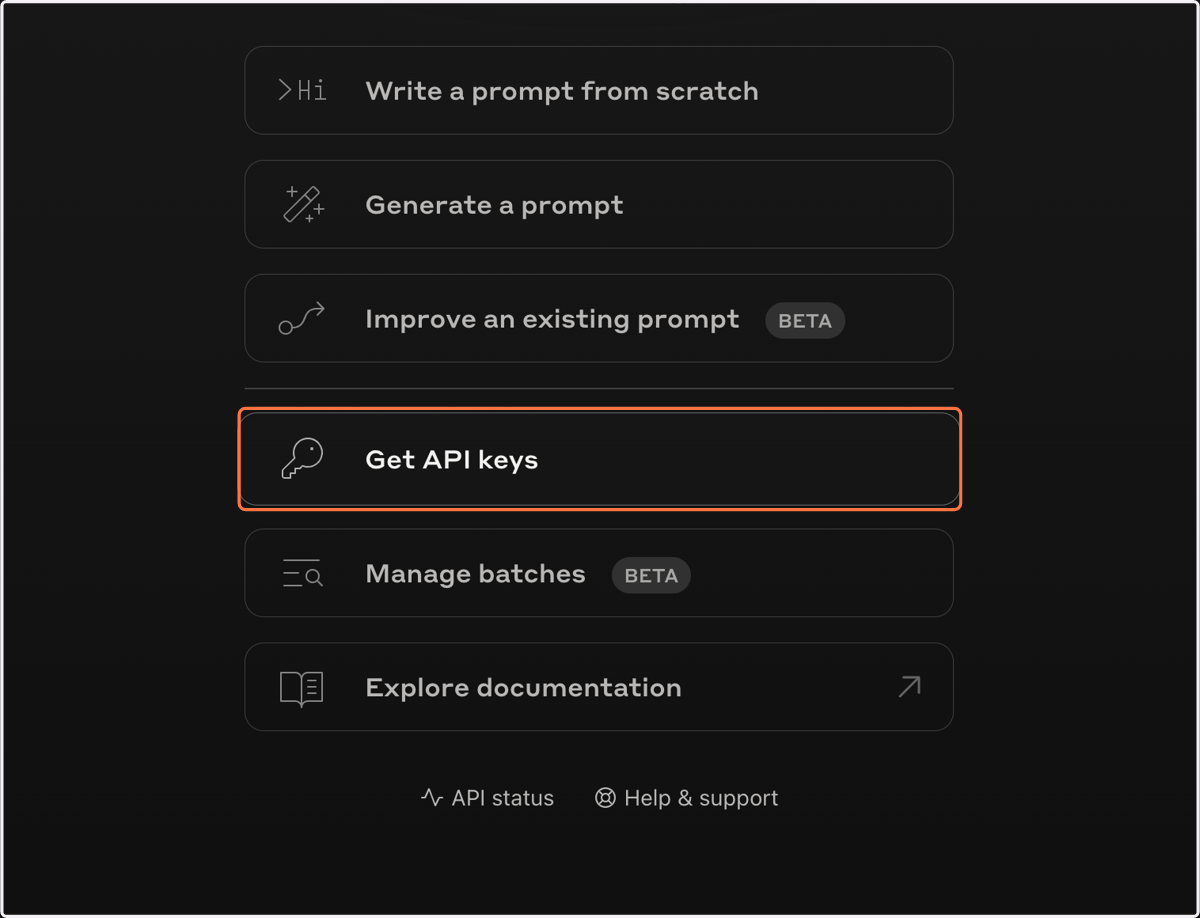
  2. 2. Click on Get API keys

    Click on Get API keys
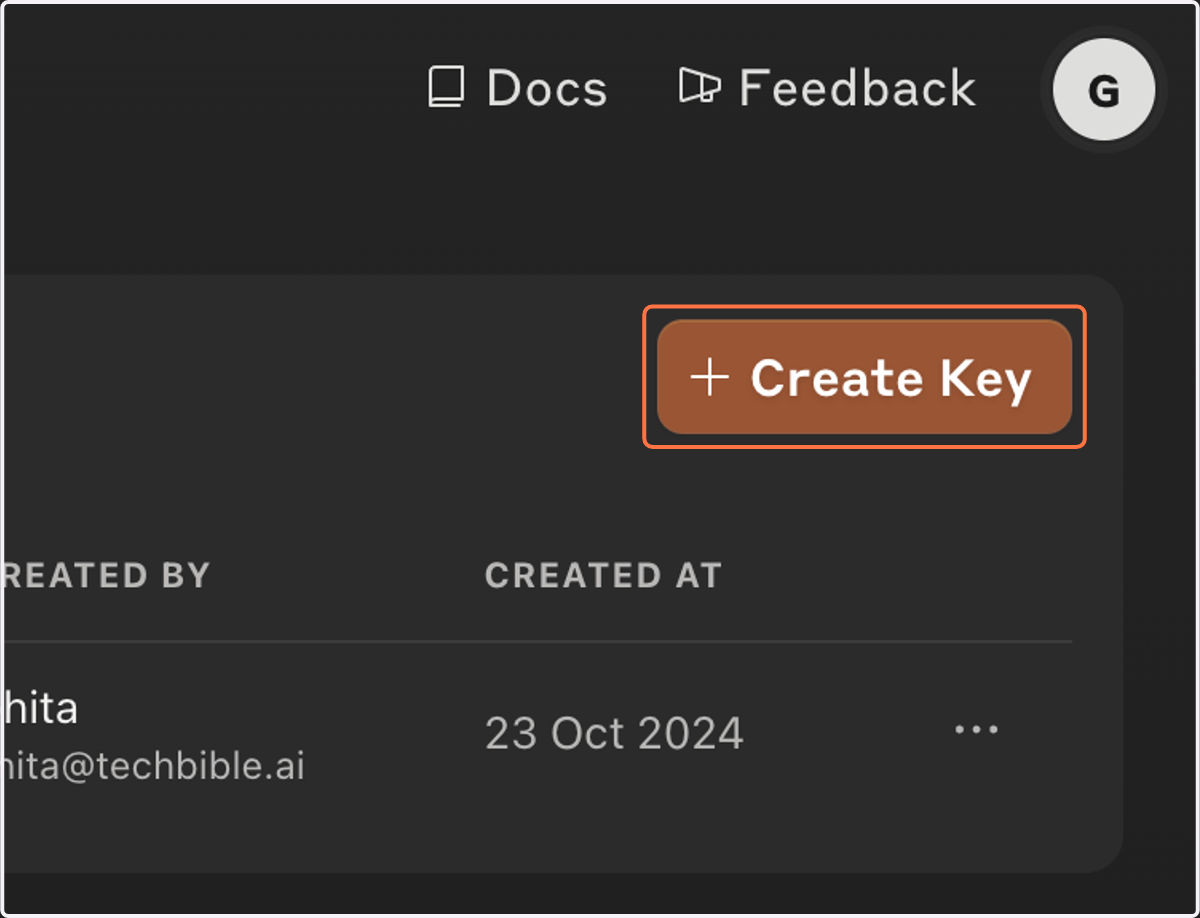
  3. 3. Click on Create Key

    Click on Create Key
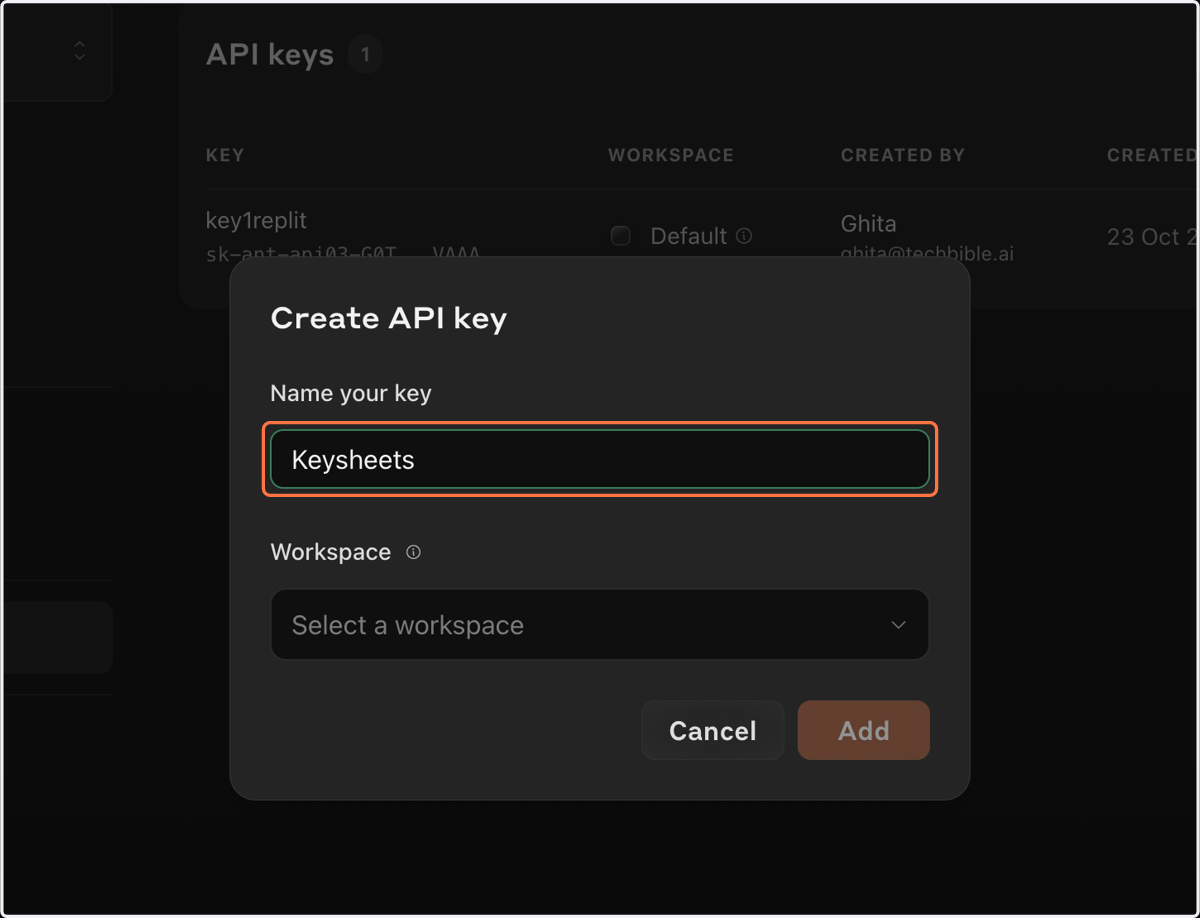
  4. 4. Type "Keysheets"

    Type "Keysheets"
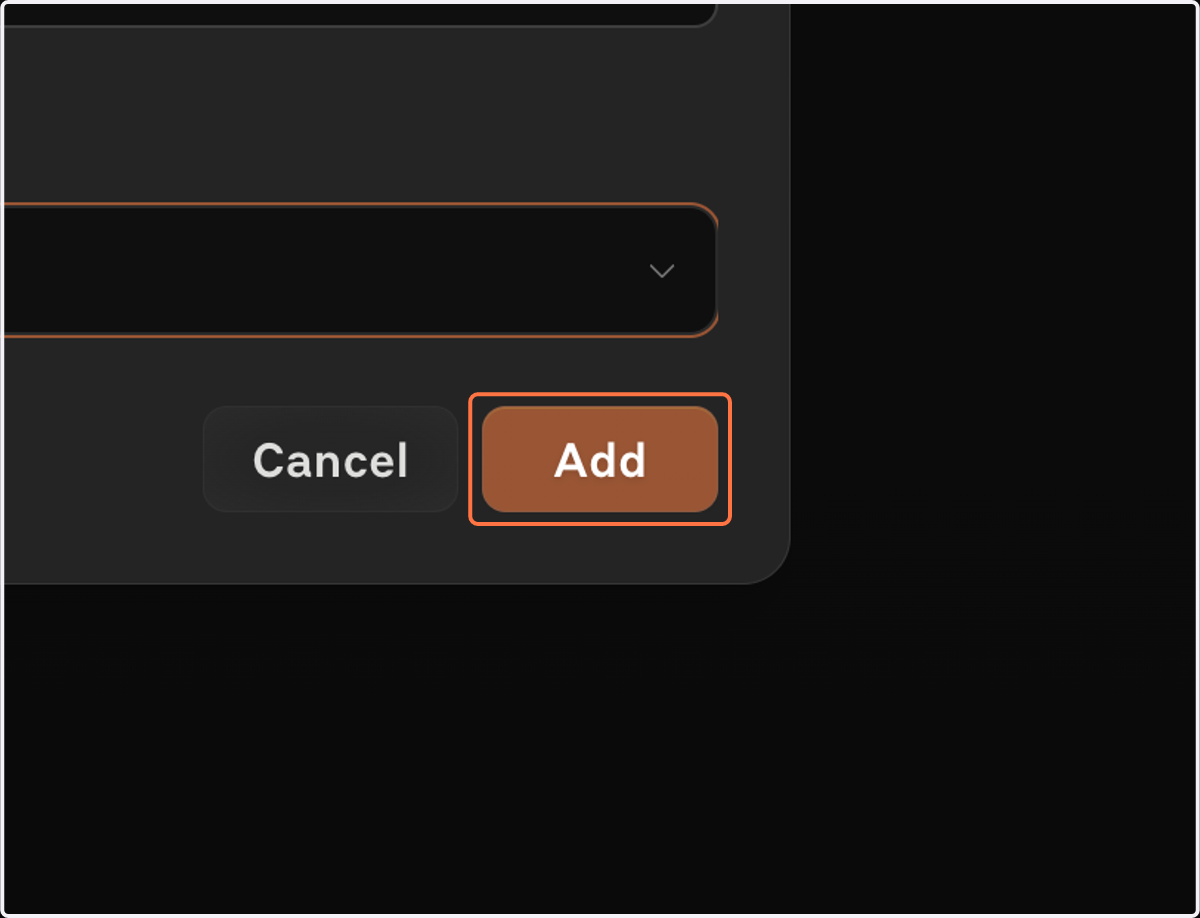
  5. 5. Click on Add

    Click on Add
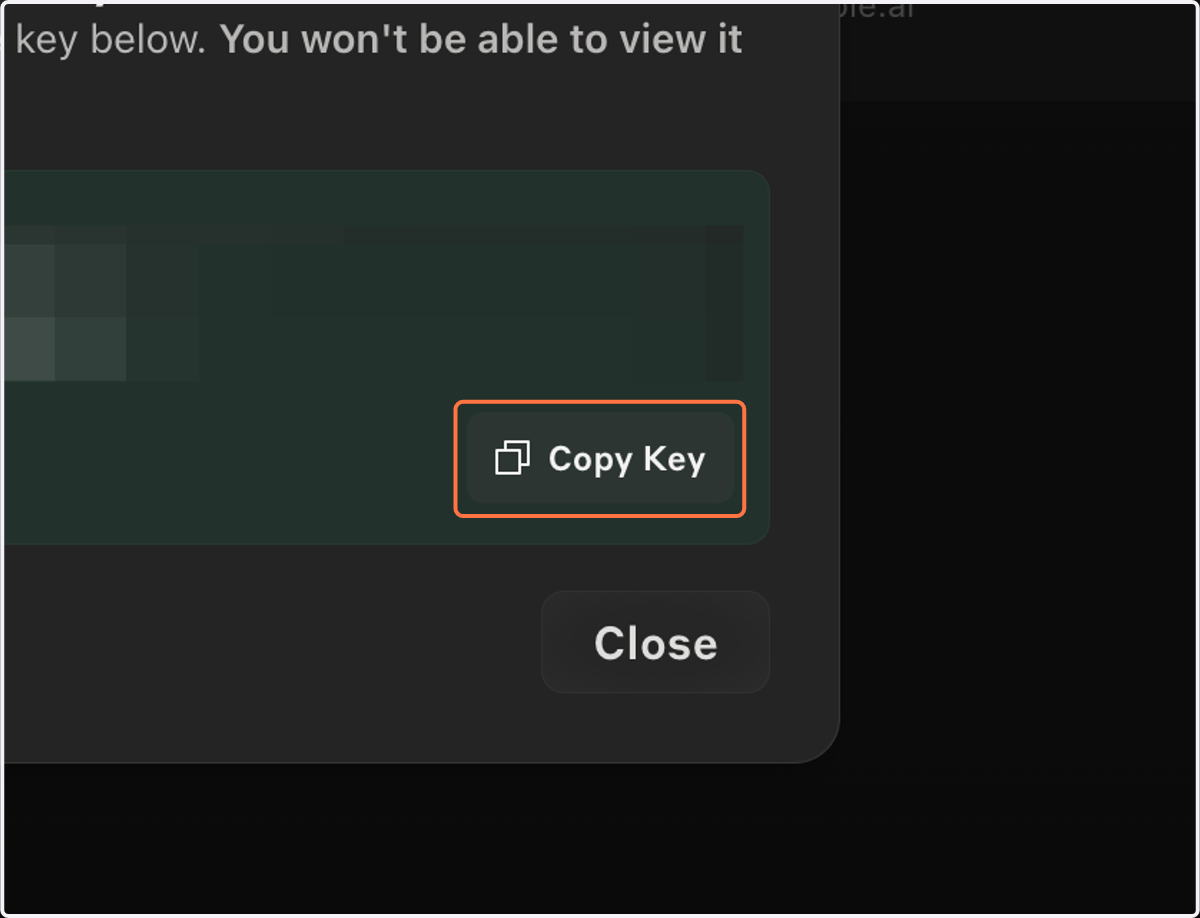
  6. 6. Click on Copy Key

    Click on Copy Key
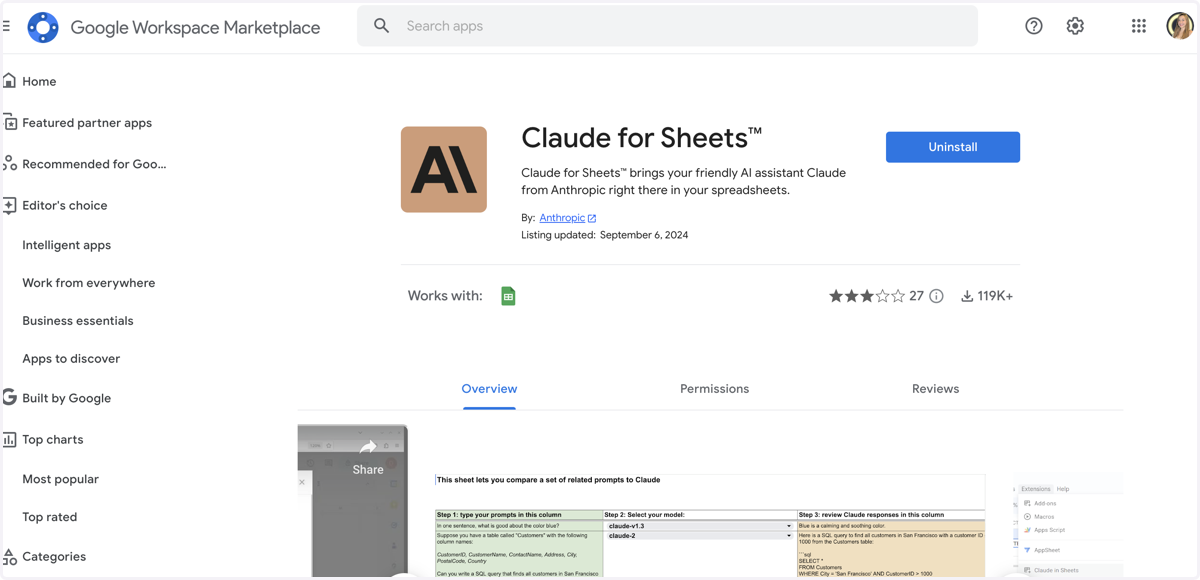
  7. 7. Install Claude's Add on

    Install Claude's Add on

Google Docs

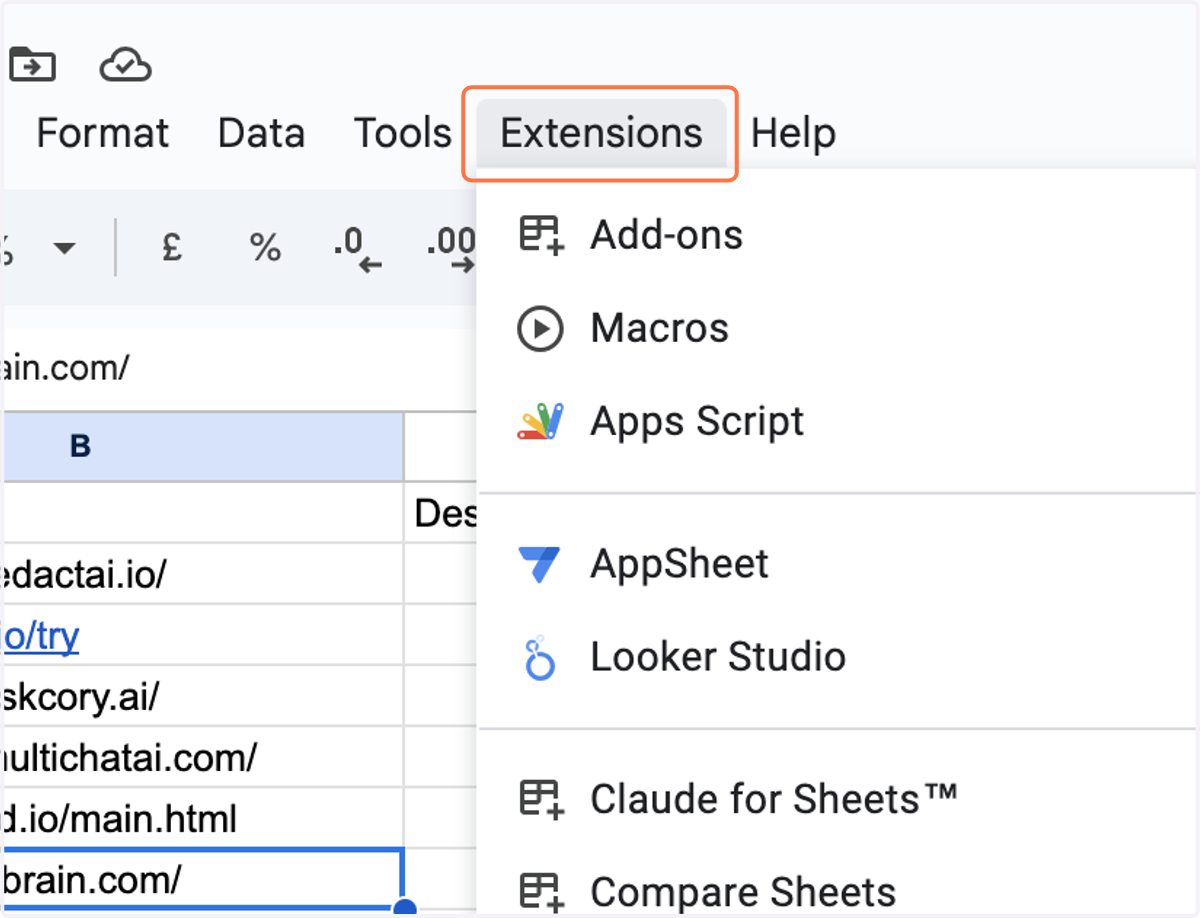
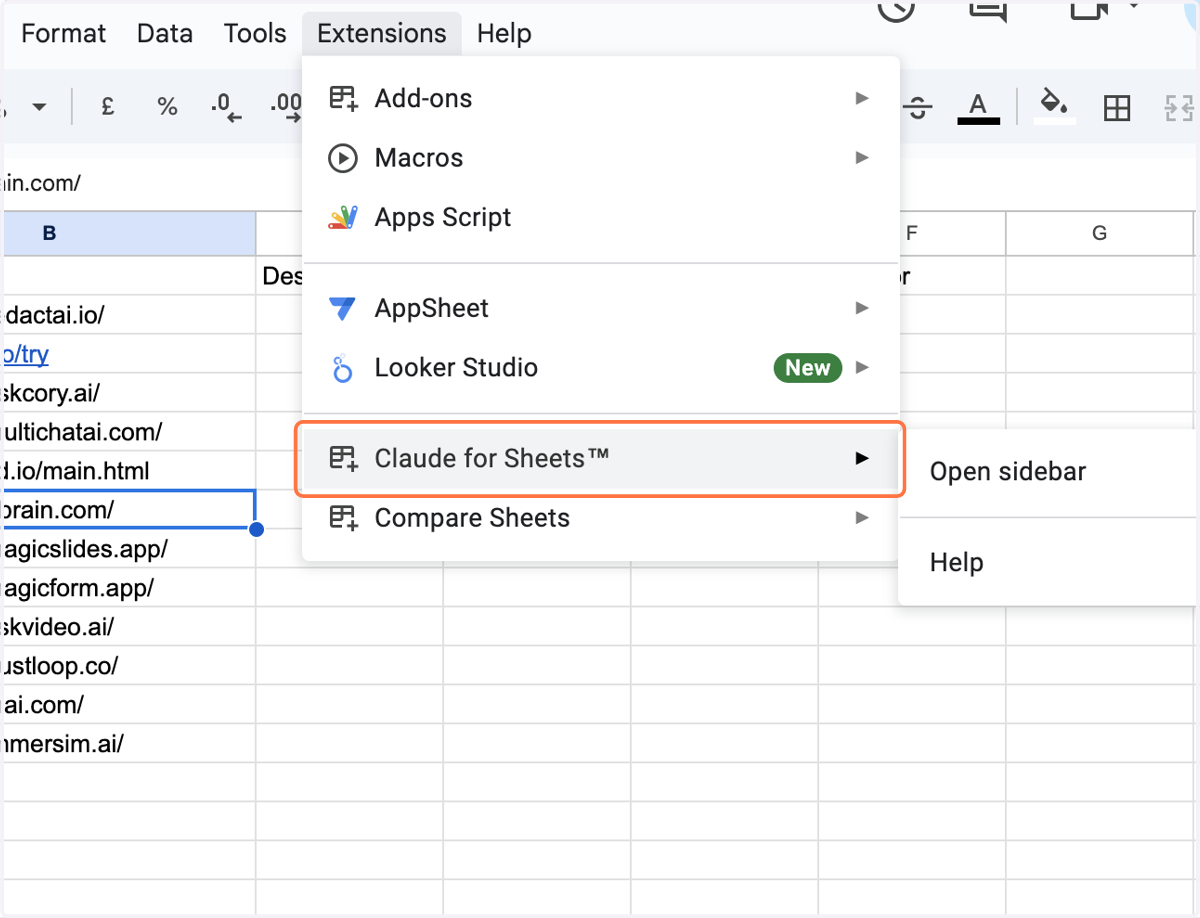
  1. 8. Click on Extensions

    Click on Extensions
  2. 9. Click on Claude for Sheets™…

    Click on Claude for Sheets™…
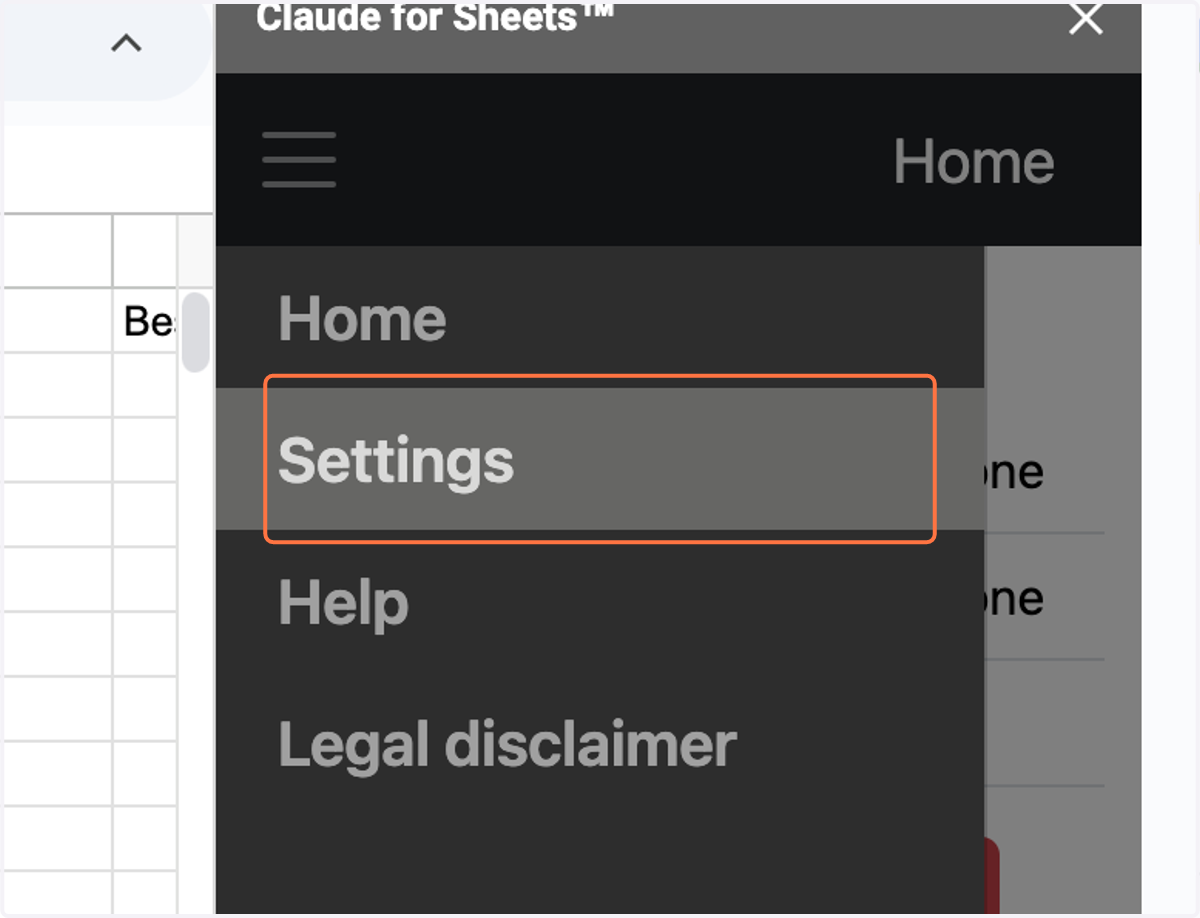
  3. 10. Click on Settings

    Click on Settings
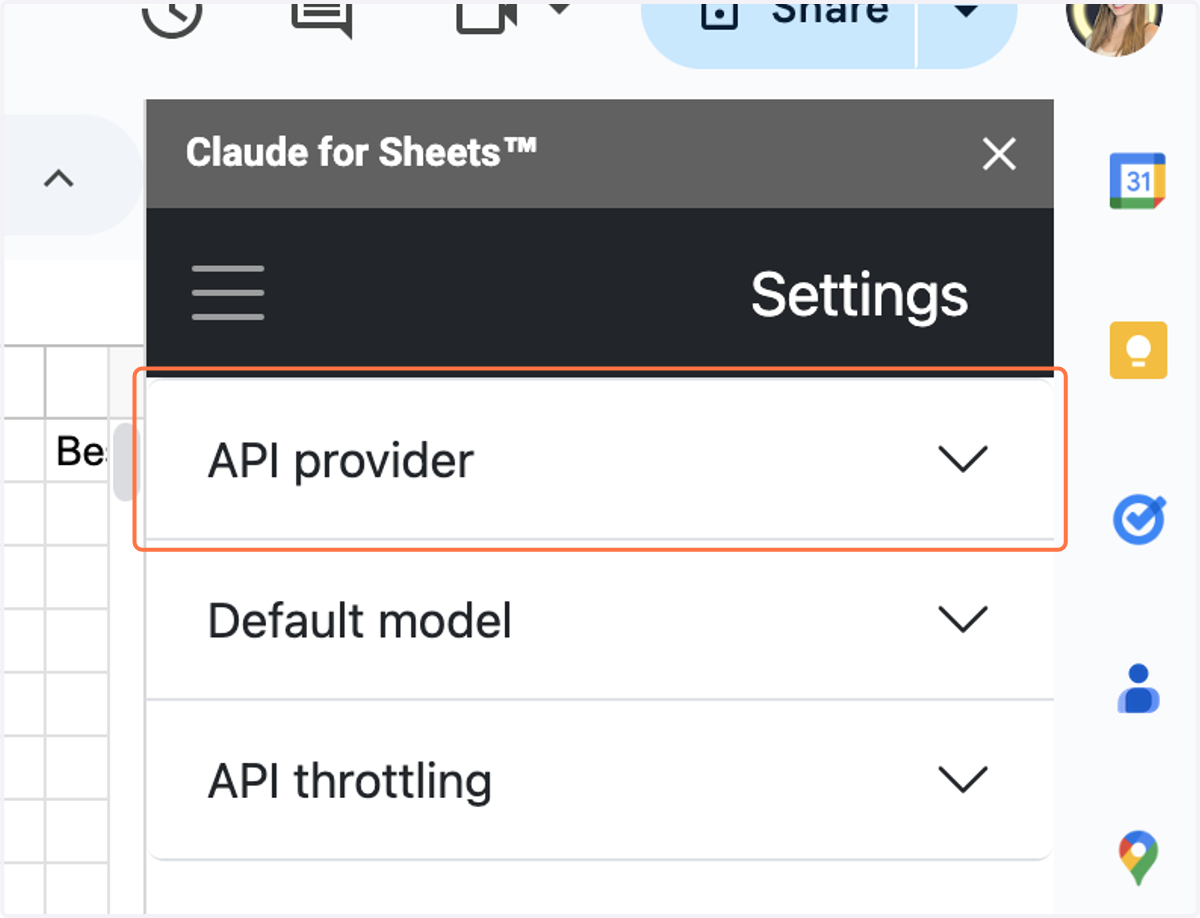
  4. 11. Click on API provider

    Click on API provider
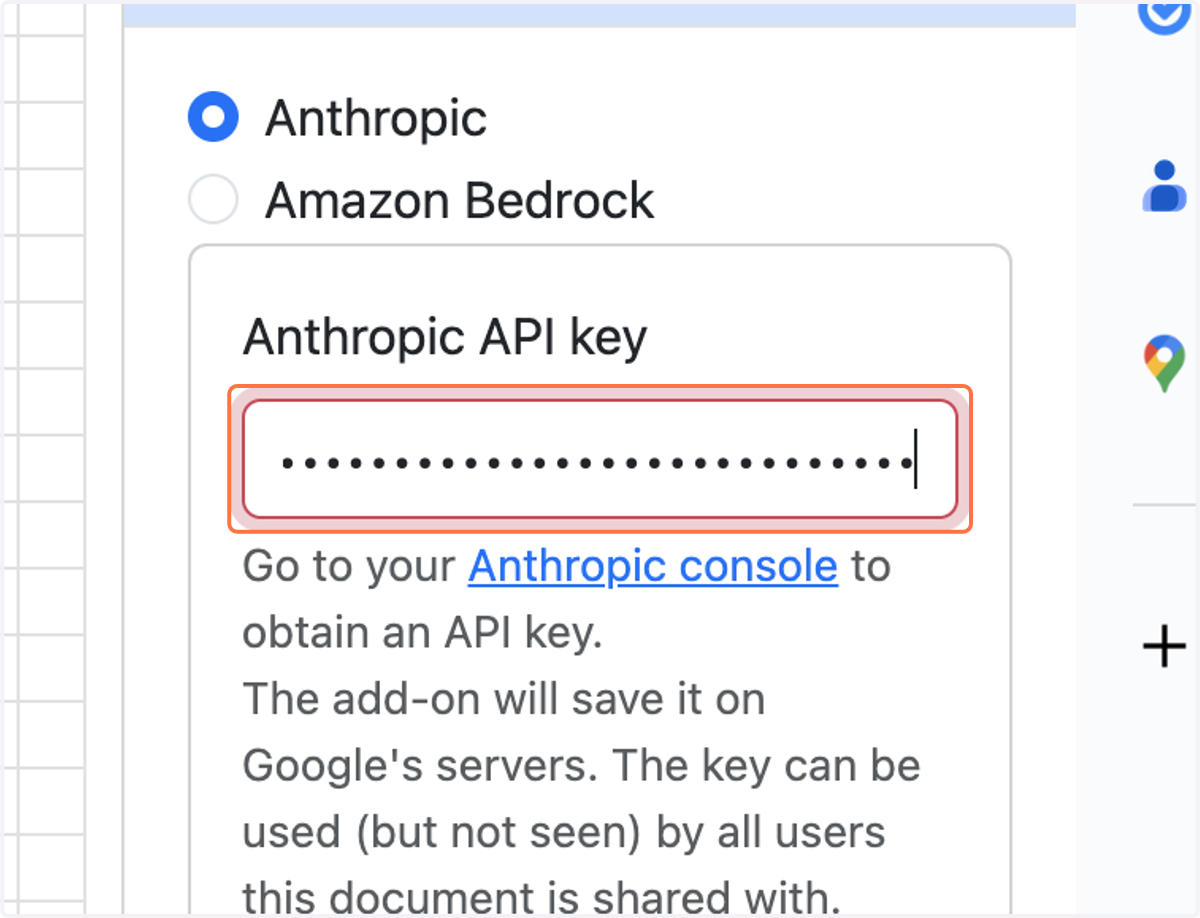
  5. 12. Paste selected text into input

    Paste selected text into input
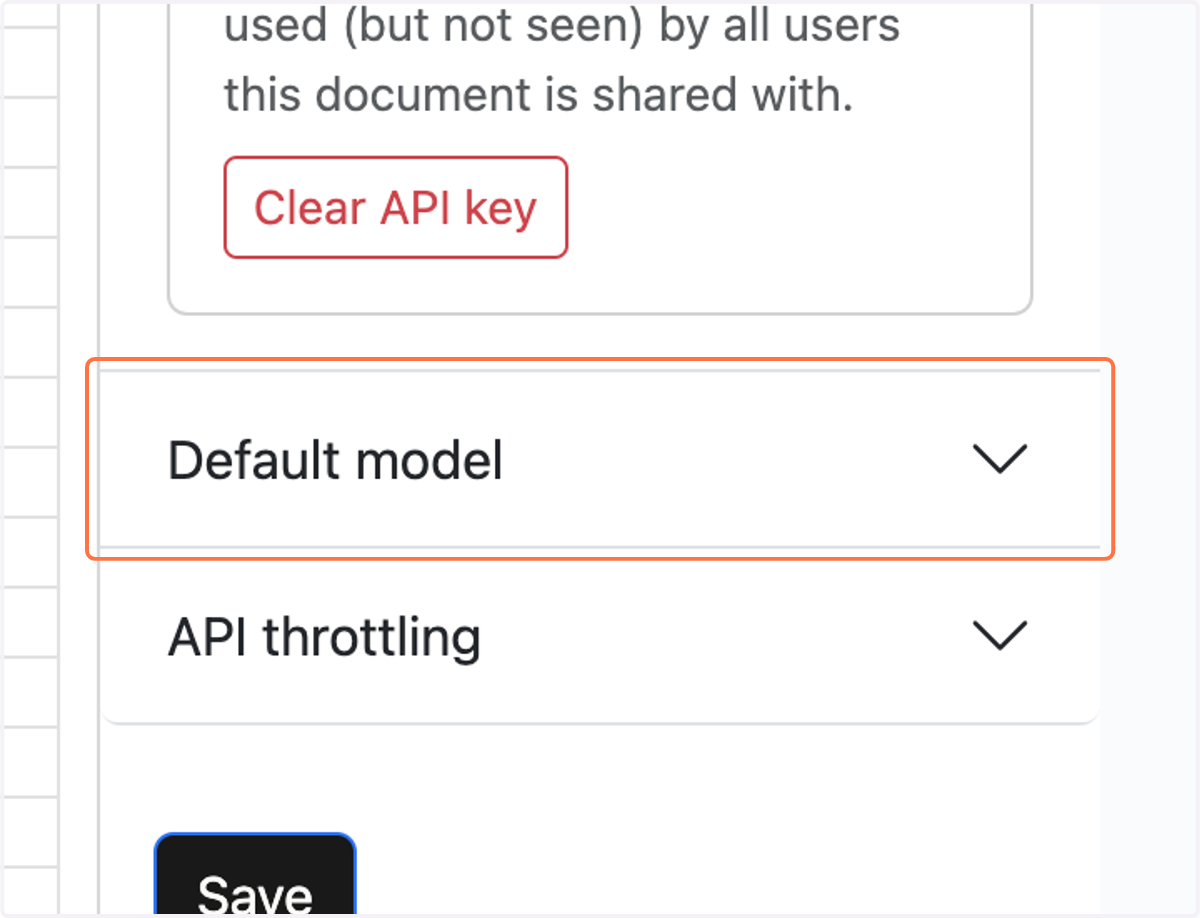
  6. 13. Click on Default model

    Click on Default model
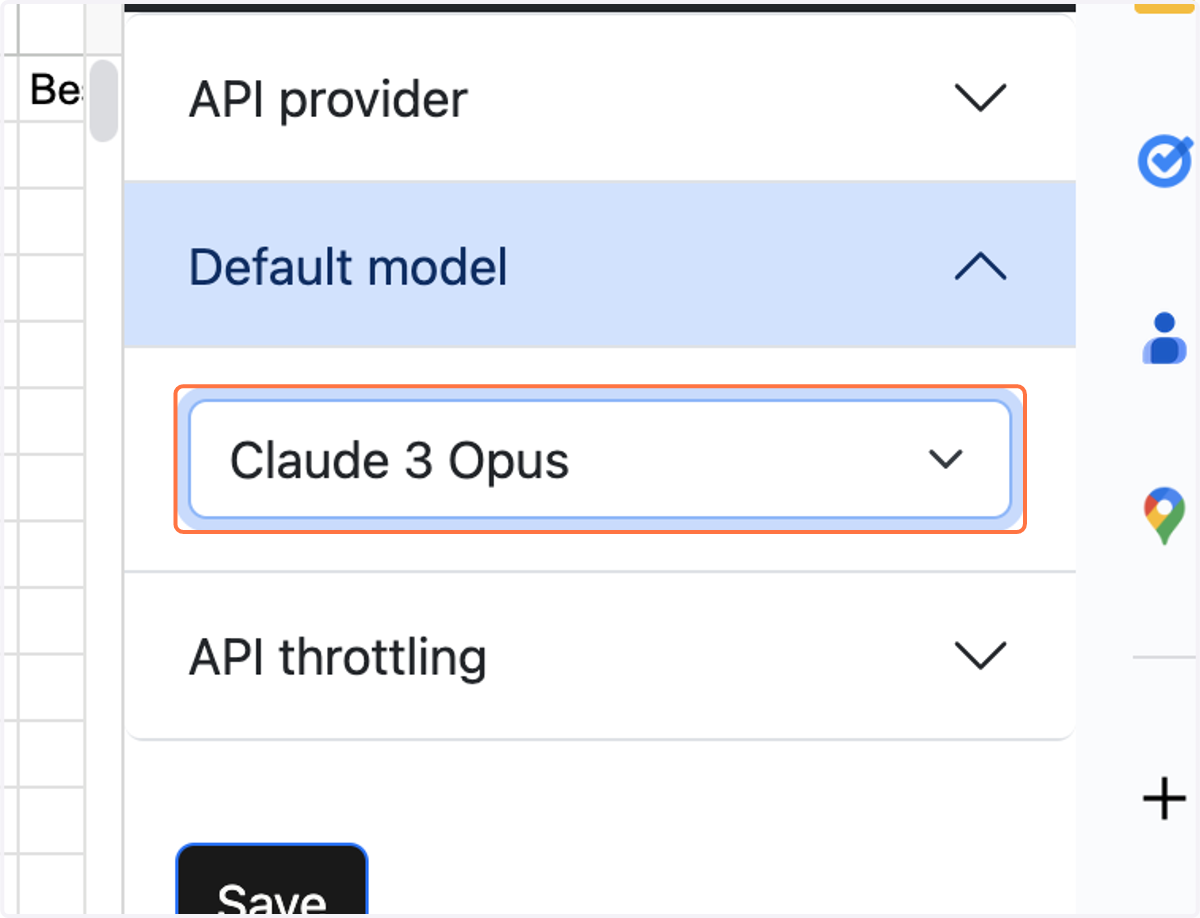
  7. 14. Select Claude 3 Opus

    Select Claude 3 Opus
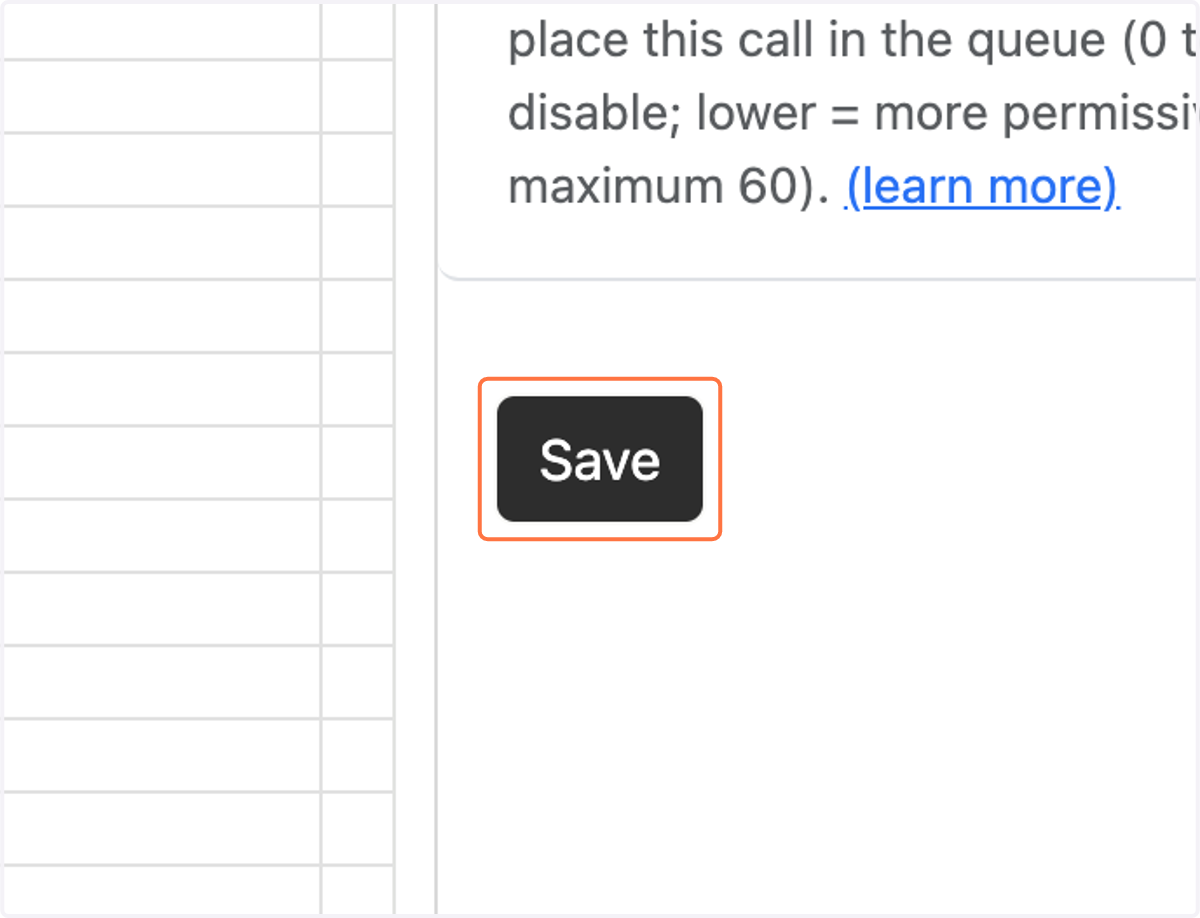
  8. 15. Click on Save

    Click on Save
  9. 16. Paste the data you want to classify and enter a system prompt with a Variable in {{....}}
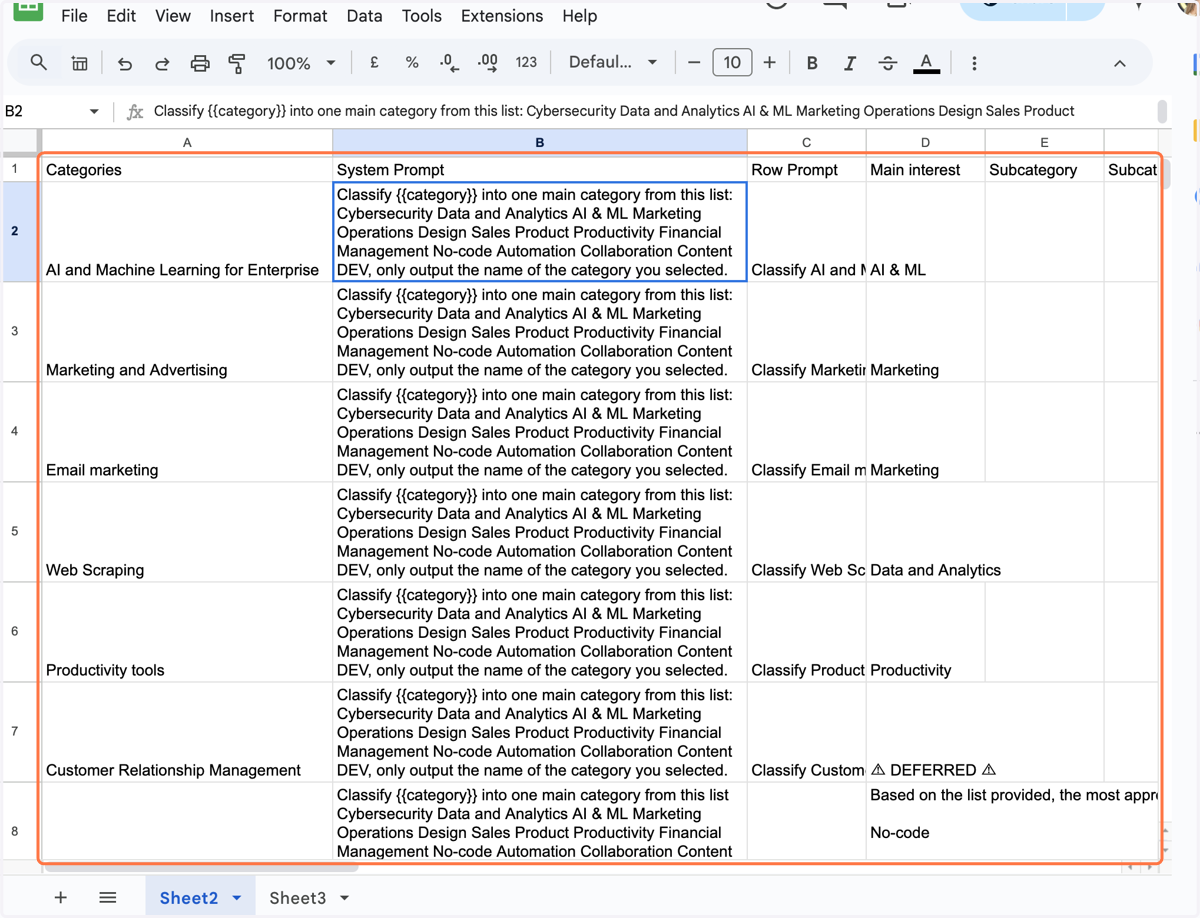
    Paste the data you want to classify and enter a system prompt with a Variable in {{....}}
  10. 17. IN the Row prompt, substitute the variable
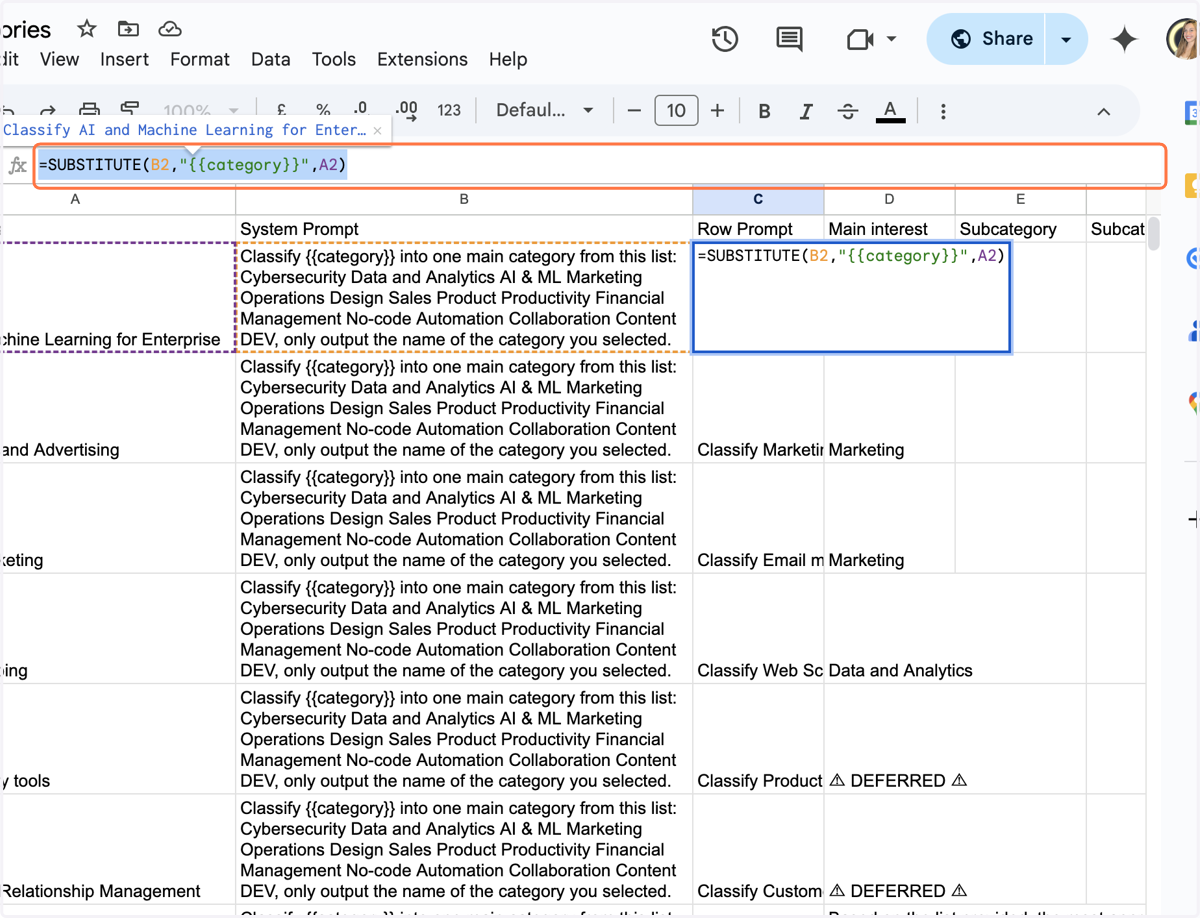
    IN the Row prompt, substitute the variable
  11. 18. Use =claude( Function to call the row prompt
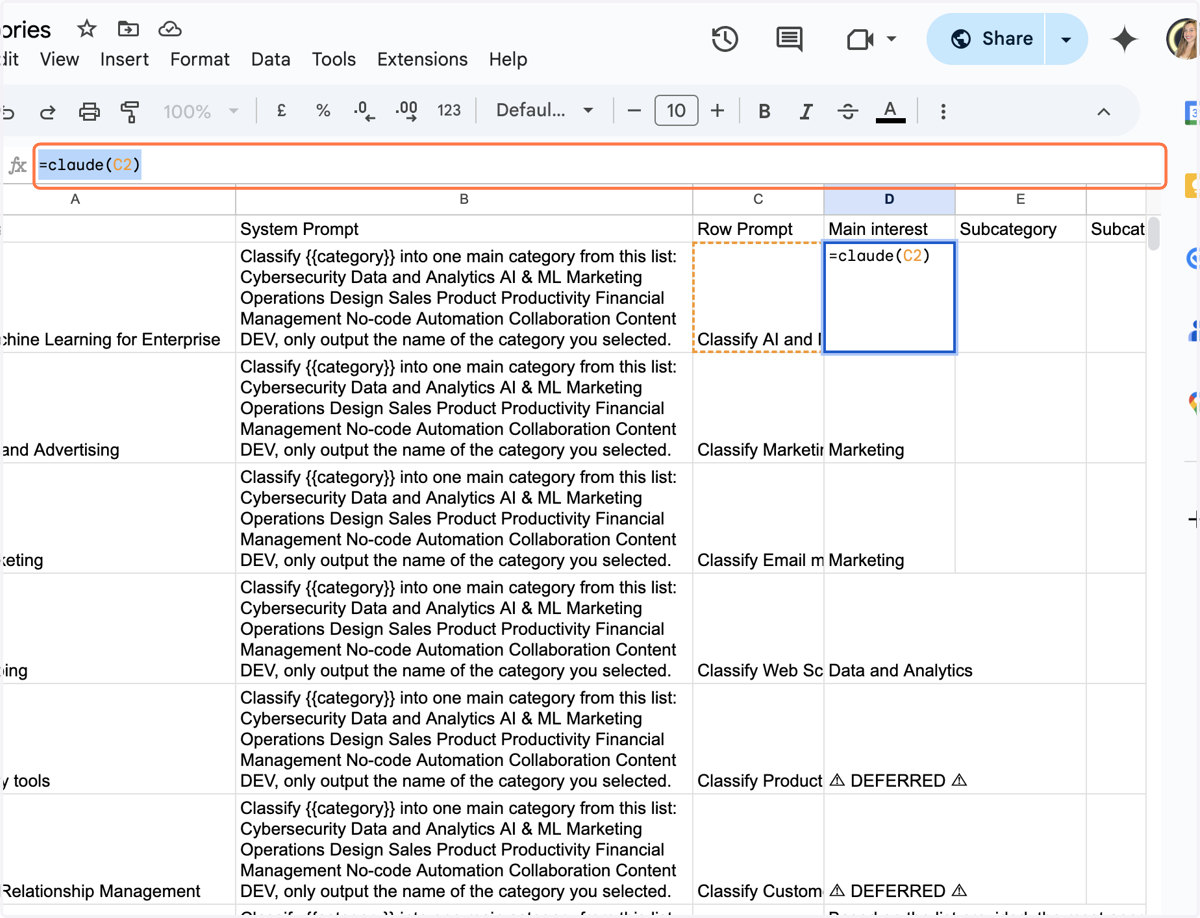
    Use =claude( Function to call the row prompt
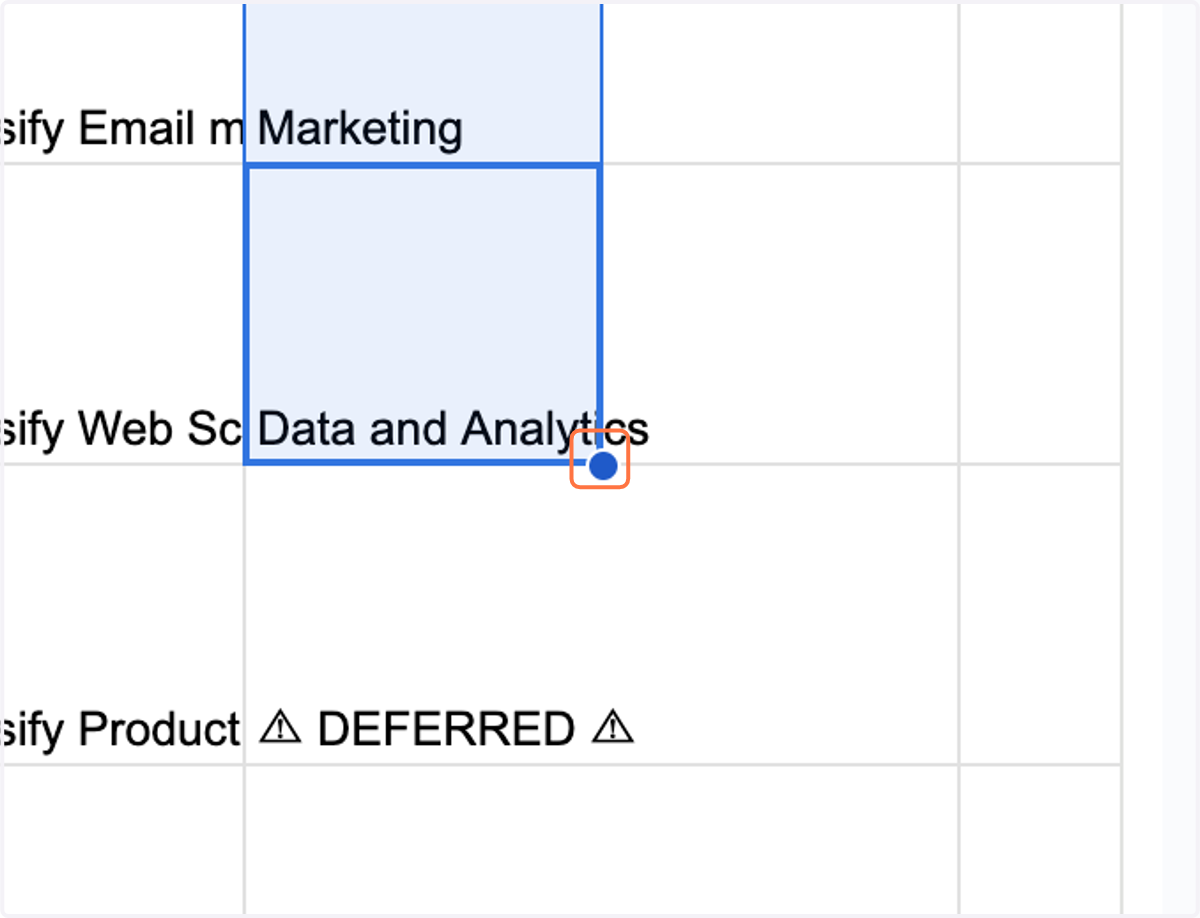
  12. 19. Drag throughout the whole sheet

    Drag throughout the whole sheet